OrganTree User Manual
OrganTree v1.5 User Manual
PREMIER SOUND FACTORY
OrganTree is a Kontakt instrument built from recordings of a HAMMOND B-3 and a Leslie speaker. It has two performance modes: LIVE ROTARY, where you pick a sound recorded through the real Leslie and play it, and DRAWBARS, where you combine nine drawbars into a sound of your own.
This manual takes you from the first sound to every control, the keyboard split, MIDI setup, NKS and saving your settings. Screen labels follow v1.5.
Contents
- 1 Requirements, installation and loading
- 2 Your first sound
- 3 Pages and basic operation
- 4 LIVE ROTARY
- 5 DRAWBARS
- 6 ROTARY
- 7 PERCUSSION
- 8 VIBRATO and RELEASE
- 9 IR REVERB
- 10 SETUP and MIDI control
- 11 NKS (KOMPLETE KONTROL / MASCHINE)
- 12 Saving your settings
- 13 Troubleshooting
- Appendix: preset keys and MIDI selection values
1 Requirements, installation and loading
What you need
- The full version of Kontakt 7.10.9 or later. OrganTree does not run in the free Kontakt Player.
- The complete OrganTree folder: the instrument, the sample data, and the resources (graphics and IRs).
- A computer and operating system supported by your version of Kontakt.
- A MIDI keyboard to play, or a MIDI track in your DAW, or Kontakt’s on-screen keyboard.
OrganTree runs inside Kontakt. In a DAW, load Kontakt as an instrument plug-in and open OrganTree in it. No serial number or Native Access activation is needed.
Downloading and extracting
If you bought OrganTree from premiersoundfactory.com, the download comes as two ZIP files: OrganTree_v1.5_Part1.zip and OrganTree_v1.5_Part2.zip (about 6.3 GB in total). Download both.
- Extract both ZIP files into the same folder.
- The two parts merge into a single
PREMIER SOUND FACTORY/OrganTree/folder. Part 1 holds the instrument, the documentation and the first half of the samples; Part 2 adds the rest of the samples to the sameSamplesfolder. - If your extraction tool asks whether to merge folders, choose to merge. No file appears in both parts, so nothing is overwritten.
- On a Mac, double-clicking the second ZIP may create a separate folder such as
PREMIER SOUND FACTORY 2instead of merging. If that happens, openOrganTree/Samplesinside the new folder, move all of its files into theSamplesfolder of the firstPREMIER SOUND FACTORY/OrganTree, then delete the empty extra folder.
If only Part 1 is extracted, Kontakt will report missing samples. If your download is a single ZIP file, simply extract it.
Loading
- Move the whole extracted
PREMIER SOUND FACTORY/OrganTreefolder to wherever you keep your libraries. Keep the file names and folder layout as they are. - Launch the full version of Kontakt.
- In Kontakt’s file browser, open
Instruments/OrganTree.nkifrom the OrganTree folder. - In standalone Kontakt, set up the MIDI input and audio output in Kontakt. In a DAW, set up the track’s input and output.
- Wait for the samples to load, then play the on-screen keyboard or your MIDI keyboard.
For loading a .nki file, see also Native Instruments’ article Setting Up a Third-Party KONTAKT Library (the section on libraries without a serial number).
Do not copy the NKI file on its own. Always move the whole product folder with everything in it. Keep the internal file names and folder layout. If Kontakt reports missing samples, see 13 Troubleshooting.
2 Your first sound
Let’s start with the sound of the real Leslie.
- Select LIVE ROTARY at the bottom of the screen.
- Click Green Onions in the center of the screen.
- Turn SPLIT OFF and play within the playable key range.
- Switch ROTARY at the lower left from SLOW to FAST. With the default MIDI assignments, the mod wheel does the same.
- Turn PERCUSSION at the upper right ON. Lift your fingers from all keys, then play the next note and listen to the attack.
- Raise the IR REVERB AMOUNT a little to add the space you like.
To change sounds, click a name in the center. The bass pedal sounds only play in the low key range, so a manual sound such as Green Onions is the easiest place to start.
3 Pages and basic operation
Three pages
| Page | What it is for |
|---|---|
| LIVE ROTARY | Choose from 16 presets and play the recordings of the real Leslie |
| DRAWBARS | Build a sound with nine drawbars and play it through the built-in rotary effect |
| SETUP | Assign MIDI CC numbers and the key-switch sounds |
LIVE ROTARY and DRAWBARS are two performance modes that you switch between. They are not layers that sound together. Switching modes stops any notes that are sounding. If you switch while playing, do it between phrases.
The LIVE ROTARY / DRAWBARS buttons are at the lower left, and the gear icon that opens SETUP is at the far right. Opening SETUP does not change the performance mode. Click the gear again to return to the page you were on, or use the mode buttons on the left.
Using the controls
- Switches and sound names: click to select. A switch shows its current state.
- Knobs: drag up or down to change the value.
- Drawbars: pull down to make that drawbar louder, push up to make it quieter.
- Menus: click and choose an item.
- CC menus in SETUP: choose OFF or CC0–127 from the menu.
Overall volume and tuning can be adjusted in Kontakt’s standard instrument header. OrganTree’s RELEASE knob does not change the overall volume.
Note names
Note names in this manual follow Kontakt. Middle C is C3 = MIDI note 60. Your DAW or keyboard may number octaves differently, so if the positions don’t match, go by the MIDI note number.
| Used for | Kontakt note name | MIDI note number |
|---|---|---|
| Manual sounds, DRAWBARS | C1–C6 | 36–96, 61 keys |
| Bass Pedal sounds | C1–C3 | 36–60, 25 keys |
| LIVE ROTARY preset keys | G♯−1–B0 | 20–35, 16 silent control keys |
4 LIVE ROTARY
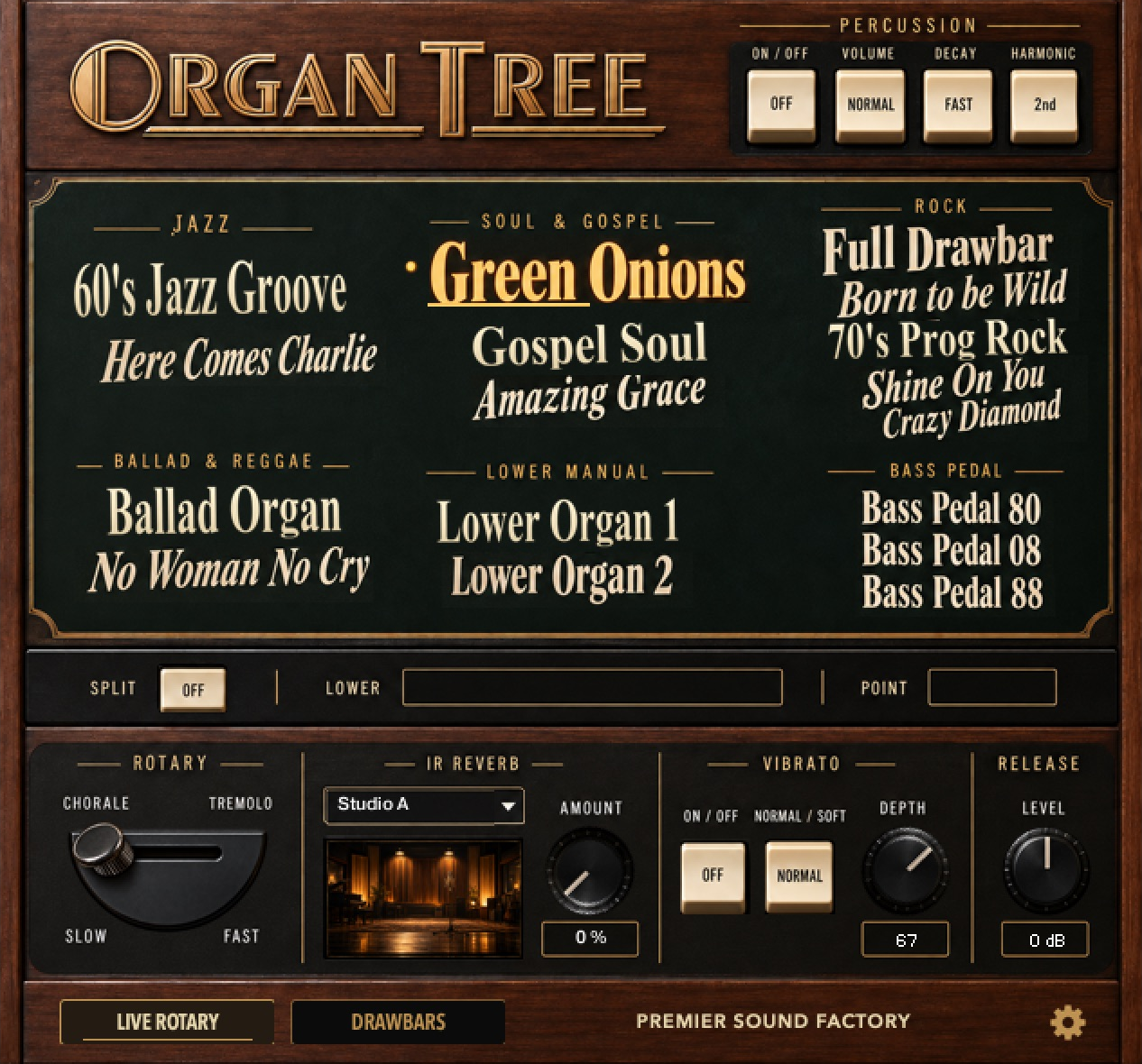
LIVE ROTARY plays presets in which each drawbar registration was recorded together with the real Leslie turning. Click a sound name to change the main sound; the selection marker moves with it.
Presets
The 16 sounds (13 manual and 3 bass pedal) are shown in the same six categories as on screen.
| Category | Sounds |
|---|---|
| JAZZ | 60’s Jazz Groove, Here Comes Charlie |
| SOUL & GOSPEL | Green Onions, Gospel Soul, Amazing Grace |
| ROCK | Full Drawbar, Born to be Wild, 70’s Prog Rock, Shine On You Crazy Diamond |
| BALLAD & REGGAE | Ballad Organ, No Woman No Cry |
| LOWER MANUAL | Lower Organ 1, Lower Organ 2 |
| BASS PEDAL | Bass Pedal 80, Bass Pedal 08, Bass Pedal 88 |
Some names, such as Shine On You Crazy Diamond, may be shortened on screen. The Lower Organ sounds can also be played as the main sound.
If you choose a preset in LIVE ROTARY and then switch to DRAWBARS, the Drawbars mode opens close to that preset. The nine drawbars take the preset’s registration, and the percussion and vibrato settings you were using in LIVE ROTARY come along too. One is a recording and the other is a mix of nine drawbars, so they will not sound exactly the same.
If you switch modes without choosing a preset, the sound you built in DRAWBARS comes back as you left it. Bass Pedal sounds are not carried over.
LIVE ROTARY sound list
16 sounds in all: 13 manual sounds and 3 bass pedal sounds. Every one of them switches between the real Leslie’s SLOW and FAST.
| Sound | Drawbar setting (session notes) |
Chorus at recording |
|---|---|---|
| Ballad Organ | 800 000 008 | Chorus C3 |
| Lower Organ 1 | 838 000 000 | — |
| Lower Organ 2 | 008 880 000 | — |
| No Woman No Cry | 400 000 003 | Chorus C3 |
| Shine On You Crazy Diamond | 468 844 054 | — |
| Green Onions | 888 000 000 | — |
| Gospel Soul | 888 800 000 | — |
| 60’s Jazz Groove | 800 008 888 | — |
| Here Comes Charlie | 888 800 008 | — |
| Amazing Grace | 468 642 468 | — |
| Full Drawbar | 888 888 888 | — |
| Born to be Wild | 888 643 200 | Chorus C3 |
| 70’s Prog Rock | 888 800 840 | — |
| Bass Pedal 80 | 80 | — |
| Bass Pedal 08 | 08 | — |
| Bass Pedal 88 | 88 | — |
Drawbar settings are taken from the recording session notes. Manual sounds show the nine drawbars from left to right; bass pedal sounds show two digits.
Chorus C3 marks the sounds recorded with the organ’s own chorus.
SPLIT: two sounds on one keyboard
With SPLIT ON, you can play different sounds on the low side (Lower) and the high side (Upper).
- Click a sound name in the center to choose the Upper sound.
- Turn SPLIT ON.
- Choose the left-hand sound from the Lower menu that appears.
- Set the boundary key with Split Point.
The split key itself belongs to Upper. The default split point is C2 = MIDI 48, which gives Lower C1–B1 (36–47) and Upper C2–C6 (48–96).
The split point can be set from C♯1 to C5 (MIDI 37–84). On Kontakt’s on-screen keyboard, the playable Lower keys are shown in green.
All 16 sounds are available for Lower, but the Bass Pedal sounds only go up to C3 (MIDI 60). If a Bass zone extends above C3, the keys above it stay silent. There is no separate third zone for the pedals.
Rotary and percussion with SPLIT
Lower follows the same ROTARY speed as Upper and crossfades between the SLOW and FAST recordings over about three seconds, even when the two sides use different sounds. Percussion applies to Upper only. Even while you hold notes on Lower, releasing all Upper keys lets the next Upper note trigger percussion again.
5 DRAWBARS
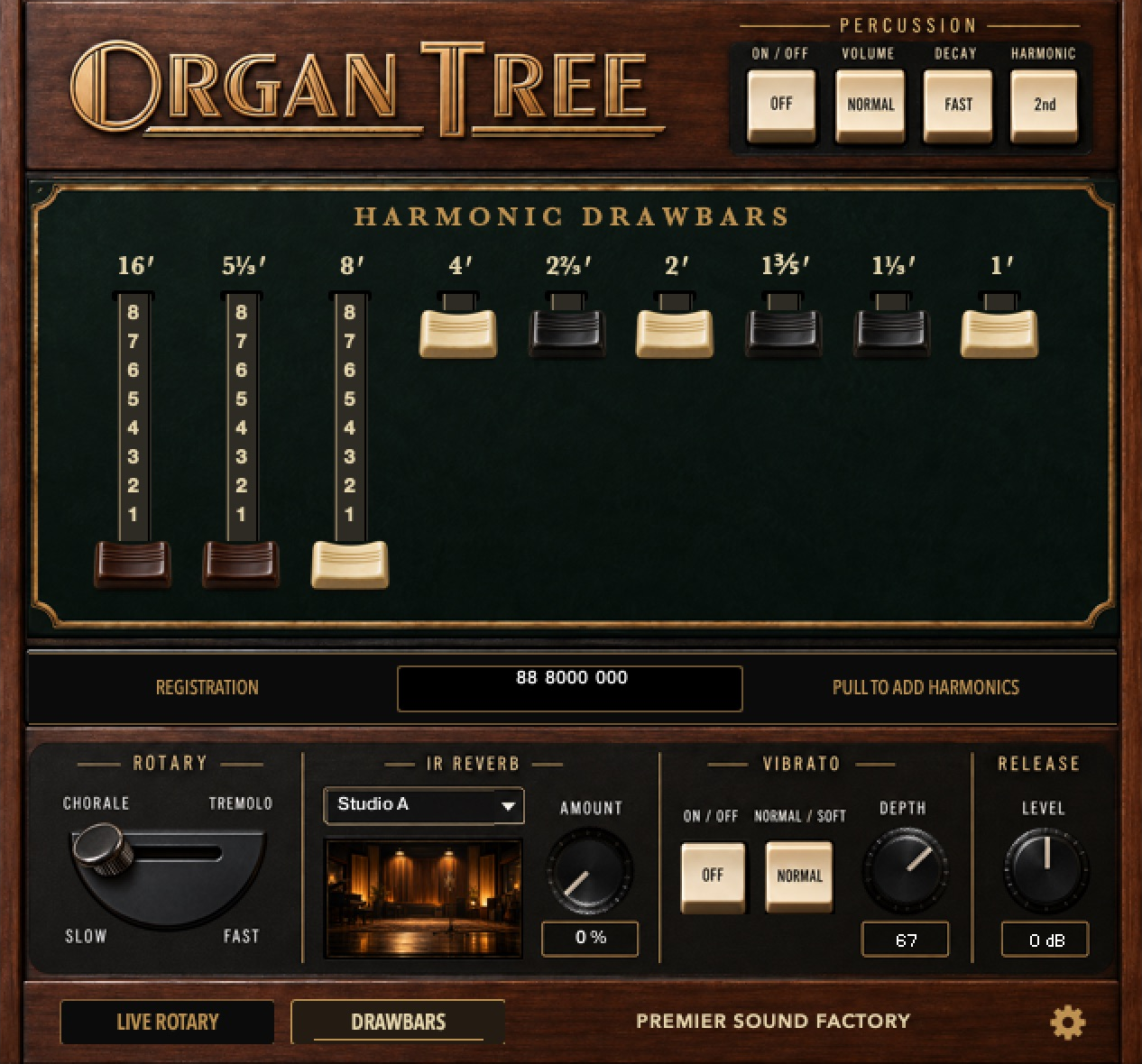
DRAWBARS combines drawbar sounds that were each recorded on their own with the Leslie stopped. The rotary movement is added by Kontakt’s built-in Rotator.
The nine drawbars
Each drawbar goes from 0 to 8. At 0 that drawbar is silent; at 8 it is at full level. Each step is about 3 dB. Changes are heard even while you hold notes.
| From left | Label | Pitch relative to 8′ | Default CC |
|---|---|---|---|
| 1 | 16′ | An octave below | 21 |
| 2 | 5⅓′ | A fifth above | 22 |
| 3 | 8′ | Fundamental | 23 |
| 4 | 4′ | An octave above | 24 |
| 5 | 2⅔′ | An octave and a fifth above | 25 |
| 6 | 2′ | Two octaves above | 26 |
| 7 | 1⅗′ | Two octaves and a major third above | 27 |
| 8 | 1⅓′ | Two octaves and a fifth above | 28 |
| 9 | 1′ | Three octaves above | 29 |
The pitches show the basic relationship of each footage.
Reading the REGISTRATION display
REGISTRATION, at the bottom center, lists the nine drawbar values from left to right. On screen they are grouped as 2, 4 and 3 digits.
For example, 88 8000 000 means the first three drawbars are at 8 and the other six at 0. It is the same setting as 888 000 000 in the common three-digit grouping. It is handy to note down the numbers of the registrations you like.
Starting points
| Try | Drawbars | How |
|---|---|---|
| Big basic tone | 88 8000 000 |
Set only the first three drawbars to 8 |
| Full drawbar | 88 8888 888 |
Set all nine to 8. Turn PERCUSSION OFF to hear every harmonic |
| Simple fundamental | 00 8000 000 |
Set only 8′ to 8, then add other drawbars little by little |
With every drawbar at 0 and PERCUSSION OFF, there is no sound. With PERCUSSION ON, you can play the percussion alone with all drawbars pushed in.
Volume
The nine drawbars add up, so pulling many of them far out makes the sound louder. With chords in particular, the output can clip. If it does, lower the volume in Kontakt’s instrument header or push some drawbars back in.
Release noise (RELEASE)
In DRAWBARS, the release noise starts from the level of the preset you carried over (or the memory you recalled) and grows or shrinks with how far the drawbars are pulled out. The RELEASE knob trims relative to that.
User memory
You can save the sounds you build in DRAWBARS to User 1–10, each with a name.
- In the REGISTRATION menu under the drawbars, choose the User slot to save to (empty slots show as “User 3 (empty)” and so on).
- Click SAVE to the right of the menu. A name field appears.
- Type a name and press Enter, or click OK, to save. If you click OK without typing a name, the slot keeps its current name (“User 3” and so on for a new slot). If you do nothing, the save is cancelled after 60 seconds.
Each slot stores the nine drawbars, percussion (ON/OFF, VOLUME, DECAY, HARMONIC) and vibrato (ON/OFF, NORMAL/SOFT, DEPTH). Recall the slot from the same menu and all of these come back together. A named slot shows as “U3: name”.
The upper half of the menu lists the drawbar registrations of the 13 LIVE ROTARY manual sounds (factory registrations). Choosing one changes only the nine drawbars; percussion and vibrato stay as they are. You cannot save over a factory registration.
The memory is not stored in your song. It is saved in your Kontakt user folder (normally Documents/Native Instruments/Kontakt 7) as “OrganTree User Memory v1.nka” and “OrganTree User Memory Names v1.nka”. Every song and every instance can recall the same slots, and updating OrganTree does not erase them.
Note: the memory files are read when OrganTree is loaded and when you save. A slot saved in one instance does not appear right away in another instance that is already open. Reload that instance to see it.
SPLIT is not used in DRAWBARS. The preset keys (MIDI 20–35, G♯−1 to B0) belong to LIVE ROTARY; in DRAWBARS they make no sound and do nothing. To recall sounds in DRAWBARS, use the user memory menu.
6 ROTARY
The half-moon switch at the lower left selects the rotary speed.
| Setting | What it does |
|---|---|
| CHORALE / SLOW | Slow, gentle swirl |
| TREMOLO / FAST | Fast rotation with a strong, rolling swirl |
LIVE ROTARY crossfades between the recorded SLOW and FAST sounds over time; DRAWBARS changes the speed of the built-in rotary effect. It is normal for the change to take a moment rather than happen instantly.
The default assignment is CC1 (mod wheel). CC values 0–64 select SLOW and 65–127 select FAST. Values in between do not set a continuous speed.
There are no controls for a rotor stop position or for the transition time. The CC number can be changed in SETUP.
7 PERCUSSION
PERCUSSION, at the upper right, adds a short tone at the start of each note, as on the original organ.
| Control | Options | Use |
|---|---|---|
| ON / OFF | OFF / ON | Turns percussion on or off |
| VOLUME | NORMAL / SOFT | SOFT is about −6 dB relative to NORMAL. Works in both modes |
| DECAY | FAST / SLOW | FAST decays quickly, SLOW decays slowly |
| HARMONIC | 2nd / 3rd | 2nd selects the second harmonic, 3rd the third harmonic |
DECAY FAST/SLOW sets how quickly the percussion fades. It has nothing to do with ROTARY SLOW/FAST.
Why percussion stops when you play legato
OrganTree’s percussion is single-trigger. It sounds only on a note played after all the relevant keys have been released.
When you play legato, the notes in between get no new percussion. To get percussion on every note, release the key before playing the next one.
With SPLIT in LIVE ROTARY, only Upper keys count. When a Bass Pedal sound is the main sound, percussion is not available and its switches are hidden.
In DRAWBARS, just like the original
Turning PERCUSSION ON silences the 1′ drawbar. The drawbar position and the REGISTRATION numbers stay as they are, and the drawbar sounds again when you turn percussion OFF.
With PERCUSSION ON and VOLUME at NORMAL, the drawbar sound drops by about 3 dB. At SOFT, the drawbars return to their normal level and the percussion is about 6 dB quieter than NORMAL.
In LIVE ROTARY, too, SOFT is about −6 dB relative to NORMAL. No Woman No Cry keeps its own percussion base level (−12 dB), and SOFT is about −6 dB below that. In LIVE ROTARY, the percussion follows the same three-second rotary transition as the organ sound.
8 VIBRATO and RELEASE
VIBRATO
Vibrato adds expression by moving the pitch up and down.
| Control | What it does |
|---|---|
| ON / OFF | Turns vibrato on or off |
| NORMAL / SOFT | SOFT makes the vibrato shallower. It does not change the volume |
| DEPTH | Sets the depth from 0 to 100. At 0 there is no vibrato even when ON |
By default, CC20 turns vibrato on and off. To control the depth continuously, assign another CC number to Vibrato Depth in SETUP.
This vibrato modulates the pitch. It is not a switch that removes the chorus recorded into some presets.
RELEASE
The sustain pedal (CC64) is supported. While it is down, notes keep sounding after you lift your fingers, and the release noise plays when you let go of the pedal. “Bass Pedal” is the name of the pedalboard sounds and has nothing to do with the sustain pedal.
RELEASE sets the level of the noise the organ makes when you let go of a key. Centered on 0 dB, it trims −12 to +12 dB relative to each sound’s own base level.
Turn it up for more release noise. It does not change note length or reverb tail. The minimum of −12 dB makes the noise quieter; it does not mute it completely.
9 IR REVERB
IR REVERB sits at the bottom center of the performance pages. An IR (impulse response) is a recording of how a space or device responds. Choose from 17 IRs to add room, hall or echo to your playing.
- Open the IR REVERB menu.
- Choose an IR. The picture changes with your choice.
- Set the amount of effect with AMOUNT.
AMOUNT runs from 0 to 100%. At 0%, nothing new is sent to the reverb. The dry sound remains even at 100%, so it is not a 100%-wet control.
| Group | Menu items | Count |
|---|---|---|
| Studio | Studio A, Studio B | 2 |
| Space Echo | Space Echo0–4 | 5 |
| Lunar Kaguya | Lunar Kaguya1–2 | 2 |
| Nohgakudo | Nohgakudo1–3 | 3 |
| Concert Hall | Concert Hall1–2 | 2 |
| Wooden Room | Wooden Room1–3 | 3 |
Besides room reverbs, there are echo-style IRs too. Start with a low AMOUNT and adjust while you play.
The IRs
Images are artistic impressions of each IR.
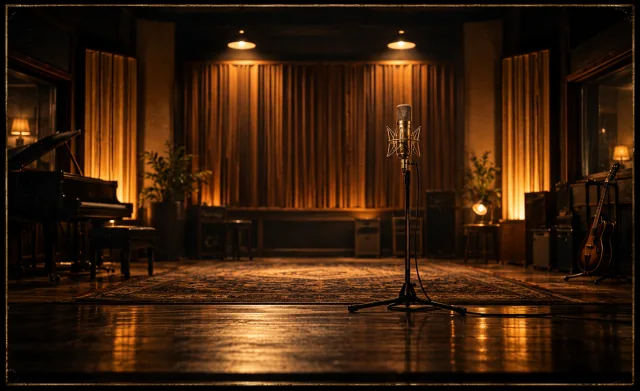
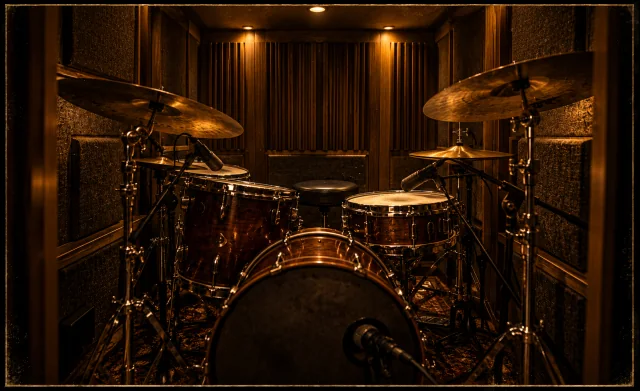
Studio A
Adds the room sound of a recording studio. Compare it with Studio B and pick what suits the phrase.
- Studio A
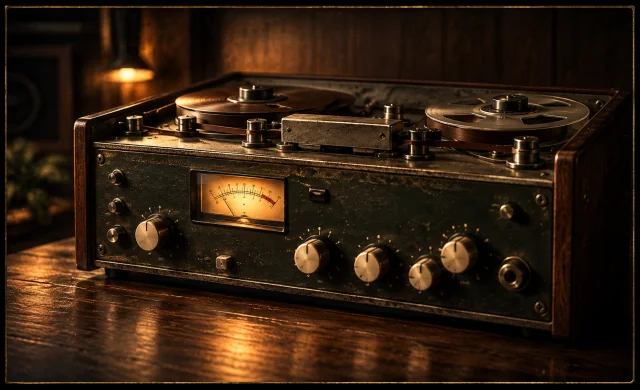
Studio B
A second studio room, different from Studio A. Compare the two at the same AMOUNT to hear the difference.
- Studio B
Space Echo
Five IRs inspired by Roland’s tape echo. Switch between 0 and 4 to find the one that fits.
- Space Echo0
- Space Echo1
- Space Echo2
- Space Echo3
- Space Echo4

Lunar Kaguya
Two ultra-long, spacious reverbs. Play the same phrase through 1 and 2 and choose the tail you like.
- Lunar Kaguya1
- Lunar Kaguya2
Nohgakudo
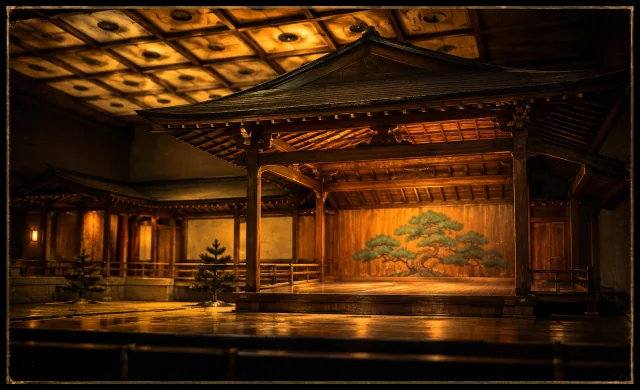
Three rare IRs captured in a Nohgakudo, a traditional Japanese Noh theater. Switch between 1 and 3 to suit your playing.
- Nohgakudo1
- Nohgakudo2
- Nohgakudo3
Concert Hall
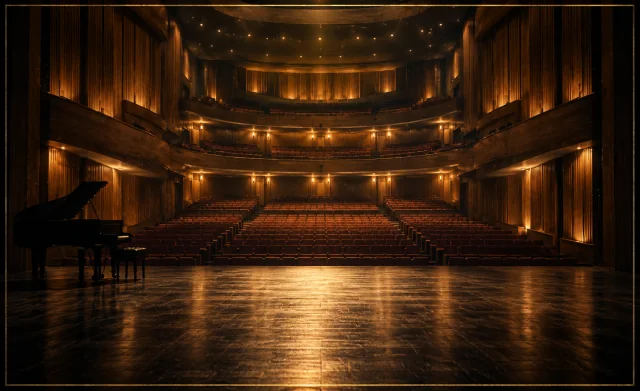
Two IRs of a large concert hall. Switch between 1 and 2, and listen to the tail after you stop playing.
- Concert Hall1
- Concert Hall2
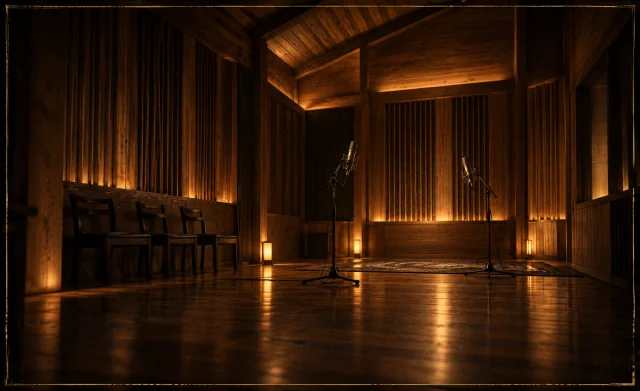
Wooden Room
Three IRs of small to mid-sized halls. Choose 1, 2 or 3 and set the amount with AMOUNT.
- Wooden Room1
- Wooden Room2
- Wooden Room3
10 SETUP and MIDI control
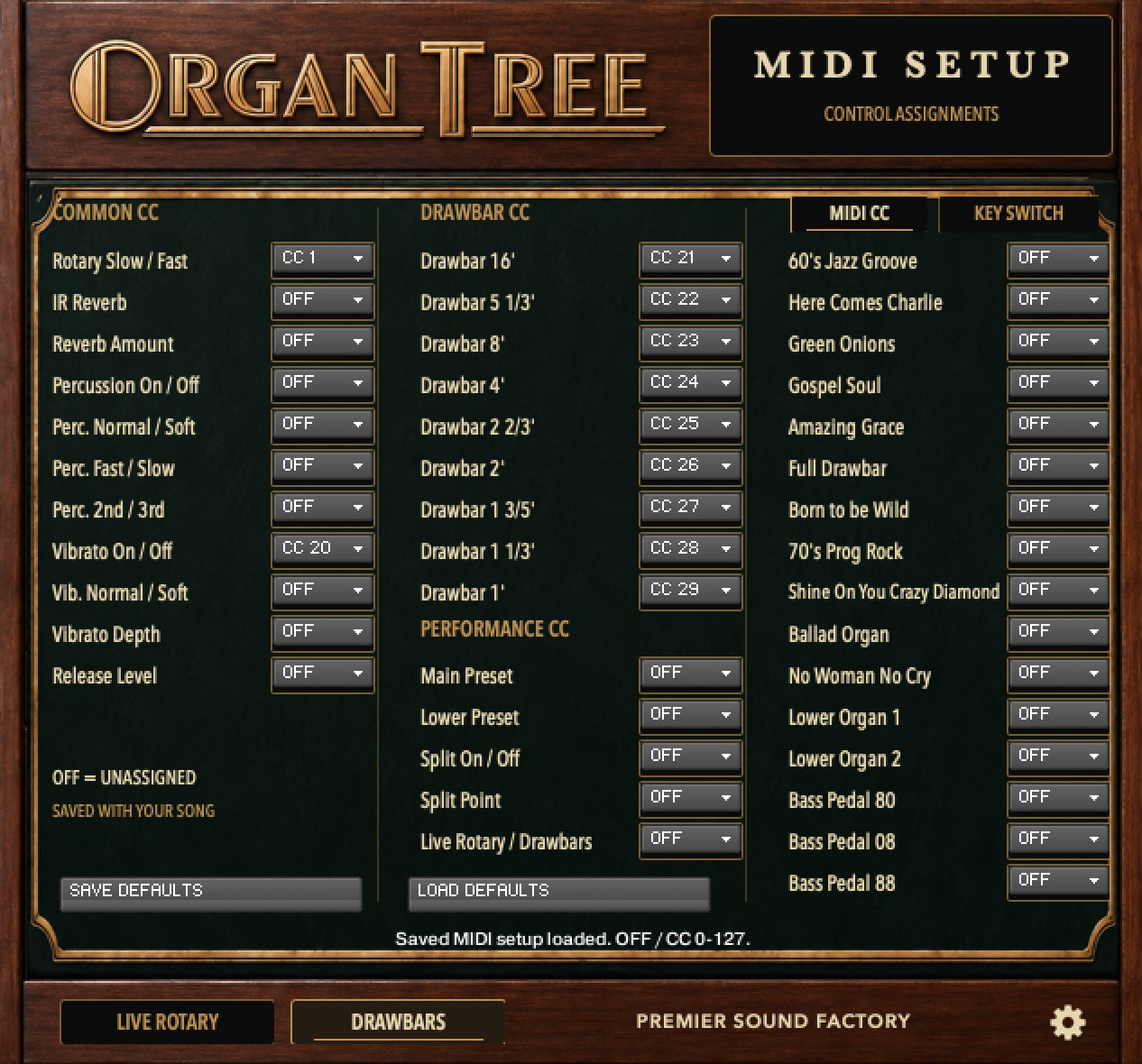
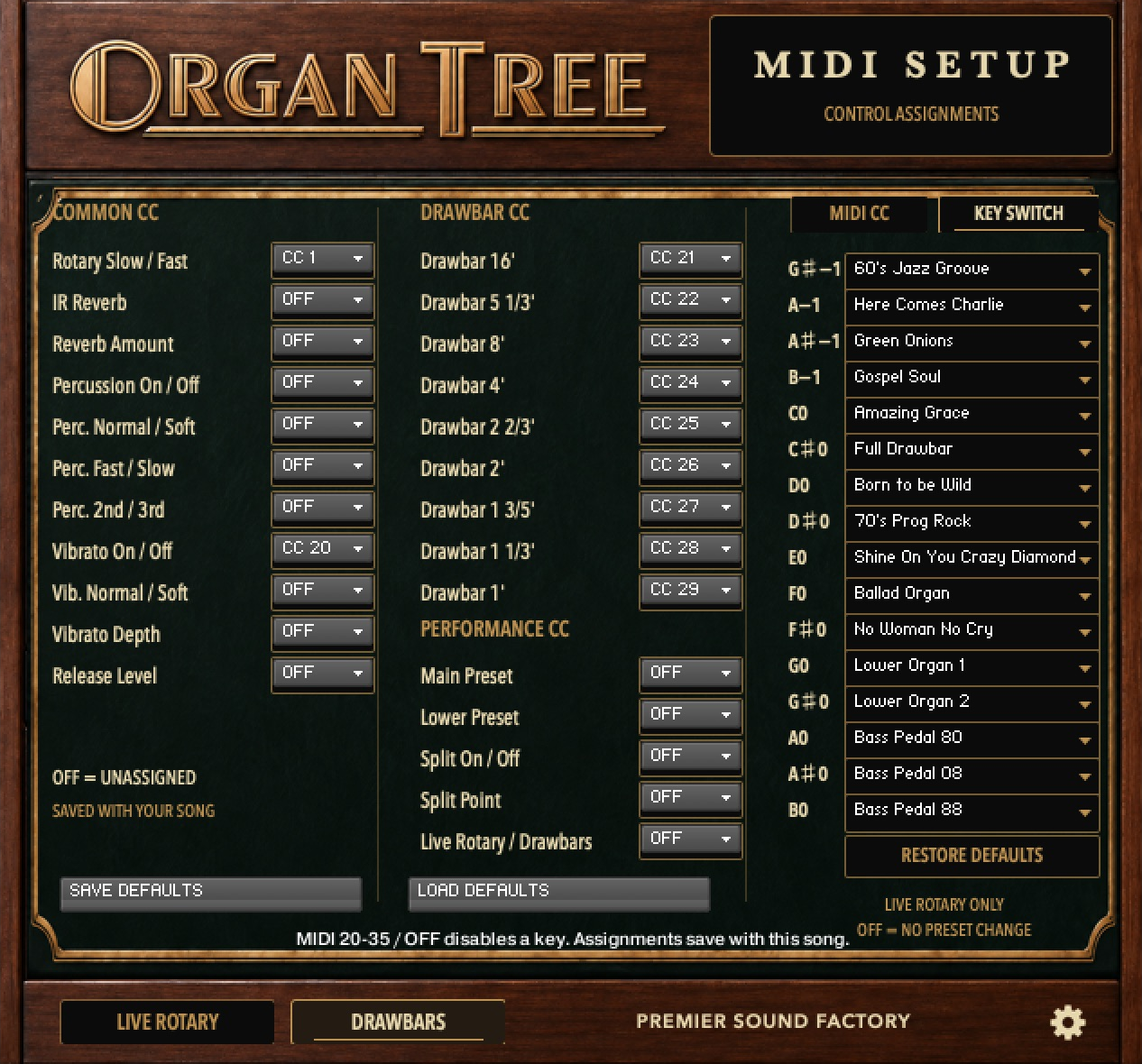
Open SETUP with the gear icon at the lower right. Here you assign MIDI CCs to 41 parameters for your knobs, faders and buttons, and change the 16 key switches that recall presets. The right-hand column switches between the MIDI CC / KEY SWITCH tabs.
Assigning a MIDI CC
- Find out which CC number your controller sends.
- In SETUP, open the menu for the parameter you want to control and choose OFF or CC0–127.
- Return to the performance page and move the controller.
- Saving your song keeps the assignments. To make them the default for new instances, click SAVE DEFAULTS.
The number you choose here is the CC number, not the CC value (0–127) being sent. Setting Rotary to 1 means “listen to CC1”; SLOW or FAST is then decided by the value CC1 sends.
Set your knobs and faders to send absolute values (0–127). Encoders sending relative values may not behave as expected.
COMMON (11 parameters)
Controls used in both performance modes. They act on whichever mode is currently selected.
| SETUP label | Controls | Default CC |
|---|---|---|
| Rotary Slow / Fast | Rotary SLOW / FAST | 1 |
| IR Reverb | IR selection | OFF |
| Reverb Amount | IR AMOUNT | OFF |
| Percussion On / Off | Percussion on / off | OFF |
| Perc. Normal / Soft | Percussion volume mode | OFF |
| Perc. Fast / Slow | Percussion decay | OFF |
| Perc. 2nd / 3rd | Percussion harmonic | OFF |
| Vibrato On / Off | Turns vibrato on or off | 20 |
| Vib. Normal / Soft | Vibrato depth mode | OFF |
| Vibrato Depth | Vibrato DEPTH | OFF |
| Release Level | Release noise level | OFF |
“Default CC” is the assignment before you change anything. Saved assignments take priority.
DRAWBARS (9 parameters)
These map to the nine drawbars from left to right. The defaults are CC21–29, in the order shown in the table in 5 DRAWBARS. They respond only in DRAWBARS mode.
A value of 0 sets the drawbar to 0, and 127 sets it to 8. Values in between are converted to the steps 0–8.
PERFORMANCE (5 parameters)
| SETUP label | Controls | Active in | Default CC |
|---|---|---|---|
| Main Preset | Main / Upper sound | LIVE ROTARY | OFF |
| Lower Preset | Lower sound | LIVE ROTARY | OFF |
| Split On / Off | SPLIT on / off | LIVE ROTARY | OFF |
| Split Point | Split point | LIVE ROTARY | OFF |
| Live Rotary / Drawbars | Performance mode | Both | OFF |
Main Preset and Lower Preset spread the values 0–127 across the 16 sounds. The values for each sound are listed in Appendix: preset keys and MIDI selection values.
PRESET TRIGGERS (16 parameters)
In the MIDI CC tab of the right-hand column, you can give each sound its own CC number. All are OFF by default. In LIVE ROTARY, the sound is recalled as the main / Upper sound when the value rises from below 64 to 64 or above.
Buttons that send 127 when pressed and 0 when released work best. Sending 127 repeatedly only triggers the first time.
KEY SWITCH: changing which sound each key recalls
- Open the KEY SWITCH tab in the right-hand column of SETUP.
- Open the menu for the key you want to change (G♯−1 to B0) and choose one of the 16 sounds.
- Choose OFF to disable that key.
- Save your song or the NKI to keep the assignments. Use SAVE DEFAULTS to save them as your defaults.
Editing an assignment does not change the current sound. In LIVE ROTARY, pressing the key switches the main / Upper sound. The same sound can be assigned to more than one key. The key names on the on-screen keyboard follow your assignments.
The key range is fixed at G♯−1 to B0 (MIDI 20–35). A key set to OFF is still a silent control key; it neither changes the sound nor mutes it. Preset keys do nothing in DRAWBARS.
RESTORE DEFAULTS returns only the 16 key assignments to the factory settings. MIDI CCs and the current sound are not changed. To overwrite your saved defaults, use SAVE DEFAULTS. For the factory key assignments, see Appendix: preset keys and MIDI selection values.
Switching thresholds
| Control | Low values | High values |
|---|---|---|
| Rotary | 0–64: SLOW | 65–127: FAST |
| Percussion On / Off, Vibrato On / Off, Split On / Off | 0–63: OFF | 64–127: ON |
| Perc. Normal / Soft, Vib. Normal / Soft | 0–63: NORMAL | 64–127: SOFT |
| Perc. Fast / Slow | 0–63: FAST | 64–127: SLOW |
| Perc. 2nd / 3rd | 0–63: 2nd | 64–127: 3rd |
| Live Rotary / Drawbars | 0–63: LIVE ROTARY | 64–127: DRAWBARS |
Using the same CC number more than once
If several drawbars share a CC number, they move together.
In DRAWBARS mode, if a drawbar and another control share a CC number, the drawbar wins. Other duplicates may make several controls respond at once. Give separate numbers to anything you want to control separately.
A CC assigned in OrganTree is used for that function. If you reuse a number that Kontakt also uses, such as volume or sustain, the original function may stop receiving it.
11 NKS (KOMPLETE KONTROL / MASCHINE)
OrganTree supports NKS. You can shape the sound from the knobs of a KOMPLETE KONTROL keyboard or MASCHINE without looking at the screen. Touch a knob to see its name and value.
The first knob, Mode, switches between the two performance modes.
- Live Rotary: choose a recorded organ sound (preset) and play it
- Drawbars: build a sound with nine drawbars
If you choose a preset in Live Rotary and then switch to Drawbars, the Drawbars mode opens close to that preset.
Newer devices (NKS2): the pages follow the mode
When you change Mode, the knob pages change to suit that mode. Knobs that do nothing in that mode are not shown.
| Mode | Performance pages | Edit pages |
|---|---|---|
| Live Rotary | Organ: Mode / Upper Preset / Rotary Fast / Perc On / Perc Vol / Perc Decay / Perc Harm / Vibrato Tone & Split: Vib Mode / Vib Depth / Reverb IR / Rev Amt / Split / Lower Preset / Split Point / Rel Level |
Organ / Vibrato / Split / Reverb |
| Drawbars | Drawbars: 16′ / 5 1/3′ / 8′ / 4′ / 2 2/3′ / 2′ / 1 3/5′ / 1 1/3′ Drawbars / Organ: 1′ / Mode / Rotary Fast / Perc On / Perc Vol / Perc Decay / Perc Harm / Vibrato |
Drawbars / Organ / Vibrato / Reverb / Memory |
Earlier devices (NKS1): four fixed pages
| Page | Knobs |
|---|---|
| ORGAN | Mode / Upper Preset / Rotary Fast / Perc On / Perc Vol / Perc Decay / Perc Harm / Vibrato |
| TONE & SPLIT | Vib Mode / Vib Depth / Reverb IR / Rev Amt / Split / Lower Preset / Split Point / Rel Level |
| DRAWBARS | 16′ / 5 1/3′ / 8′ / 4′ / 2 2/3′ / 2′ / 1 3/5′ / 1 1/3′ |
| DRAWBARS / MEMORY | 1′ / Memory / Store |
Knobs that do nothing in the current mode show “-” as their value (for example, the drawbars in Live Rotary, or Upper Preset and Split in Drawbars).
User memory (Drawbars mode only)
- Memory: recalls the 13 factory registrations and User 1–10. A named slot shows as “U2: name”.
- Store: saves the current drawbars and Perc / Vibrato settings to the User slot selected with Memory. Turning the knob overwrites the slot immediately. Factory registrations cannot be overwritten (the knob shows “User only”).
- Names are given on OrganTree’s own screen (SAVE on the Drawbars page). A slot saved from NKS keeps a name such as “User 3”.
- The memory is saved in your Kontakt user folder, so every song and instance can recall the same slots and updates don’t erase them (see 5 DRAWBARS).
12 Saving your settings
Settings kept per performance mode
LIVE ROTARY and DRAWBARS each keep their own rotary, percussion, vibrato, release level, IR and AMOUNT settings. Build a sound in one mode, move to the other and back, and the settings of that mode are restored.
Preset selection and Split belong to LIVE ROTARY; the nine drawbar values belong to DRAWBARS.
The user memory (User 1–10) is not stored in your song but in your Kontakt user folder (see 5 DRAWBARS).
Keeping a sound for next time
Settings kept while you switch pages are not the same as settings saved after you quit Kontakt.
In a DAW, save your project after building a sound. In standalone Kontakt, or if you want the same sound in other songs, save it with Kontakt’s instrument save function under a new name, so it stays separate from the original NKI.
To save the settings while leaving the samples where they are, use Patch Only. This does not include the samples themselves. For details, see Saving Instruments in the Kontakt manual.
Song and instance settings, and your defaults
CC and key-switch assignments are saved with your DAW project or Kontakt instrument. Values saved in a song or an existing instance take priority and are never silently overwritten by your saved defaults.
SAVE DEFAULTS saves the current CC and key-switch assignments as the defaults for new instances. LOAD DEFAULTS loads your saved defaults into the current instance when you ask it to. Other instances that are already open do not change.
RESTORE DEFAULTS returns only the KEY SWITCH assignments to the factory settings. There is no button that resets all MIDI CCs at once. To return the CCs to the factory settings, set them by hand in SETUP: Rotary to CC1, Vibrato On / Off to CC20, the nine drawbars from left to right to CC21–29, and everything else to OFF. SAVE DEFAULTS and LOAD DEFAULTS save and load your own defaults; they do not restore the factory settings.
Your defaults and the user memory are saved in your Kontakt user folder, normally Native Instruments/Kontakt 7 inside your Documents folder. If you can’t find the files there, search your Documents folder for “OrganTree User Memory”: depending on your system, Kontakt may use Native Instruments/User Content instead. The result of saving or loading is shown in a message at the bottom of SETUP. If saving fails, check that the folder exists and that you have permission to write to it.
13 Troubleshooting
| Problem | What to check |
|---|---|
| No sound | Check Kontakt’s MIDI input, the instrument’s MIDI channel, the output, the volume and Mute. In a DAW, also check record-arm and monitoring |
| Some keys don’t sound | Manual sounds play on MIDI 36–96, Bass on 36–60. Preset keys are control keys only. Also check the Split sounds and split point |
| No sound in DRAWBARS | Make sure not every drawbar is at 0. With PERCUSSION ON, 1′ is silenced, so 1′ on its own makes no sound |
| Percussion only sounds on the first note | It is single-trigger. Release all keys before playing the next note |
| The percussion controls are missing | Check whether a Bass Pedal sound is the main sound in LIVE ROTARY |
| Checking the percussion level | SOFT is about −6 dB below NORMAL. Compare single notes, and check the current page and any CC assignments |
| Only 1′ is silent | In DRAWBARS, PERCUSSION ON silences 1′. Turn it OFF and listen again |
| Checking the rotary with SPLIT | Lower follows the same speed and three-second transition as Upper. Check the ROTARY switch and the current page |
| No vibrato | Check ON / OFF, that DEPTH is not 0, and the CC number in SETUP |
| No reverb | Choose an IR and raise AMOUNT. At 0% nothing new is sent to the reverb |
| Some release noise remains with RELEASE turned down | The minimum is −12 dB relative to each sound’s base level, not a full mute |
| A wheel or knob does nothing | Check the CC number, the MIDI channel it sends on, the current mode, OFF settings and duplicate assignments |
| Controller values jump | Set it to send absolute values (0–127), not relative ones |
| A button won’t recall the same sound twice | PRESET TRIGGERS respond to a rising value. Set the button to send 0 when released |
| CC numbers are not what you expect after reloading | Check the assignments saved in the song or instance. To bring in your saved defaults, click LOAD DEFAULTS |
| SETUP shows a save error | Check that the user folder exists and is writable. Click SAVE DEFAULTS again and read the message at the bottom |
| Changing a CC in SETUP | Choose OFF or CC0–127 from the menu; numbers cannot be typed in |
| A DEMO or version warning appears | Make sure you are using the full version of Kontakt 7.10.9 or later. The free Kontakt Player is not supported |
| The sound clips in DRAWBARS | Many drawbars pulled far out add up. Lower Kontakt’s volume or push some drawbars back in |
| A saved User slot doesn’t appear in another instance | The memory is read when OrganTree loads. Reload that instance |
| Preset keys do nothing in DRAWBARS | Preset keys are for LIVE ROTARY. In DRAWBARS, recall sounds from the memory menu |
Kontakt says content is missing
If the samples have moved, Kontakt may show Content Missing. Use Browse for Folder to point to the folder that contains OrganTree’s samples and let the loading finish. Once it plays correctly, save in Kontakt. For details, see the Samples Missing dialog in the Kontakt manual. If you bought the two-part download, also make sure Part 2 was extracted into the same folder as Part 1 (see 1 Requirements, installation and loading).
Keep the NKI and its related files with their original names and folder layout. If you suspect a missing or damaged file, extract the downloaded ZIP file(s) again.
Appendix: preset keys and MIDI selection values
LIVE ROTARY preset keys
These are the pink keys on Kontakt’s on-screen keyboard. They don’t play notes; they select the main / Upper sound. By default they follow the on-screen order of the 16 sounds. Each key can be set to any sound or OFF in SETUP > KEY SWITCH.
| Kontakt note | MIDI note | Default sound |
|---|---|---|
| G♯−1 | 20 | 60’s Jazz Groove |
| A−1 | 21 | Here Comes Charlie |
| A♯−1 | 22 | Green Onions |
| B−1 | 23 | Gospel Soul |
| C0 | 24 | Amazing Grace |
| C♯0 | 25 | Full Drawbar |
| D0 | 26 | Born to be Wild |
| D♯0 | 27 | 70’s Prog Rock |
| E0 | 28 | Shine On You Crazy Diamond |
| F0 | 29 | Ballad Organ |
| F♯0 | 30 | No Woman No Cry |
| G0 | 31 | Lower Organ 1 |
| G♯0 | 32 | Lower Organ 2 |
| A0 | 33 | Bass Pedal 80 |
| A♯0 | 34 | Bass Pedal 08 |
| B0 | 35 | Bass Pedal 88 |
These keys do not select presets in DRAWBARS. OFF disables the key; it is not a mute key.
Main Preset / Lower Preset values
CC values 0–127 are rounded to the 16 sounds in on-screen order. The table gives a typical value for each sound; you do not send an internal sound number.
| Order | Sounds | Example CC value |
|---|---|---|
| 1 | 60’s Jazz Groove | 0 |
| 2 | Here Comes Charlie | 8 |
| 3 | Green Onions | 17 |
| 4 | Gospel Soul | 25 |
| 5 | Amazing Grace | 34 |
| 6 | Full Drawbar | 42 |
| 7 | Born to be Wild | 51 |
| 8 | 70’s Prog Rock | 59 |
| 9 | Shine On You Crazy Diamond | 68 |
| 10 | Ballad Organ | 76 |
| 11 | No Woman No Cry | 85 |
| 12 | Lower Organ 1 | 93 |
| 13 | Lower Organ 2 | 102 |
| 14 | Bass Pedal 80 | 110 |
| 15 | Bass Pedal 08 | 119 |
| 16 | Bass Pedal 88 | 127 |
Default MIDI assignments at a glance
| Control | CC number |
|---|---|
| Rotary Slow / Fast | 1 |
| Vibrato On / Off | 20 |
| Drawbar 16′ | 21 |
| Drawbar 5⅓′ | 22 |
| Drawbar 8′ | 23 |
| Drawbar 4′ | 24 |
| Drawbar 2⅔′ | 25 |
| Drawbar 2′ | 26 |
| Drawbar 1⅗′ | 27 |
| Drawbar 1⅓′ | 28 |
| Drawbar 1′ | 29 |
| All other SETUP parameters | OFF |